
取扱説明書
MXN10
はじめに
本ガイドは、本製品の設置と使用をできるだけ簡単に行えるように作成しています。本書の情報は、発行時点で正確性を入念に確認しています。ただし、Cambridge Audio は継続的な改善を方針としているため、デザインや仕様は予告なく変更する場合があります。
This guide is designed to make installing and using this product as easy as possible. Information in this document has been carefully checked for accuracy at the time of publishing; however, Cambridge Audio’s policy is one of continuous improvement, therefore design and specifications are subject to change without prior notice.
本書には、著作権で保護された専有情報を含みます。無断転載を禁じます。本マニュアルのいかなる部分も、製造元の事前の書面による許可なく、機械的・電子的その他の手段や形式で複製することはできません。すべての商標および登録商標は、各所有者に帰属します。
This document contains proprietary information protected by copyright. All rights are reserved. No part of this manual may be reproduced by any mechanical, electronic or other means, in any form, without prior written permission of the manufacturer. All trademarks and registered trademarks are the property of their respective owners.
Bluetooth® のワードマークおよびロゴは、Bluetooth SIG, Inc. が所有する登録商標です。Audio Partnership Plc による当該マークの使用はライセンスに基づきます。その他の商標および商号は、各所有者に帰属します。
The Bluetooth® word mark and logos are registered trademarks owned by the Bluetooth SIG, Inc. and any use of such marks by Audio Partnership Plc is under license. Other trademarks and trade names are those of their respective owners.
Qualcomm は、Qualcomm Incorporated の商標です。米国およびその他の国で登録されており、許可を得て使用しています。
Qualcomm is a trademark of Qualcomm Incorporated, registered in the United States and other countries, used with permission.
aptX は、Qualcomm Technologies International, Ltd. の商標です。米国およびその他の国で登録されており、許可を得て使用しています。Qualcomm aptX は、Qualcomm Technologies International, Ltd. の製品です。
aptX is a trademark of Qualcomm Technologies International, Ltd., registered in the United States and other countries, used with permission. Qualcomm aptX is a product of Qualcomm Technologies International, Ltd.
StreamMagic は Audio Partnership Plc の商標です。欧州共同体およびその他の国で登録されています。
StreamMagic is a trademark of Audio Partnership Plc and is registered in the European Community and other countries.
本製品は、GNU Public License バージョン 2 および GNU Lesser Public License バージョン 2.1 に基づきライセンスされたソフトウェアを含みます。このソフトウェアのソースコードは、次のサイトから入手できます: http://gpl.stream-magic.com/
This product contains software licensed under version 2 of the GNU Public License and version 2.1 of the GNU Lesser Public License. The source code for this software is available from: http://gpl.stream-magic.com/
本製品は、Microsoft Corporation が所有し、Microsoft Licensing GP からライセンスを受けた技術を含みます。本製品以外での当該技術の使用または配布は、Microsoft Corporation および/または Microsoft Licensing GP のライセンスなしに禁止されます。
This product includes technology owned by Microsoft Corporation and under a licence from Microsoft Licensing GP. Use or distribution of such technology outside of this product is prohibited without a license from Microsoft Corporation and/or Microsoft Licensing, GP as applicable.
Spotify ソフトウェアは、次のサードパーティライセンスの対象です: www.spotify.com/connect/third-party-licenses。
The Spotify software is subject to third party licenses found here: www.spotify.com/connect/third-party-licenses.
本製品は AirPlay 2 に対応しており、iOS 11.4 以降が必要です。
This product support AirPlay 2 and requires iOS 11.4 or later.
Apple および AirPlay は、米国およびその他の国で登録された Apple Inc. の商標です。
Apple and AirPlay are trademarks of Apple Inc., registered in the U.S. and other countries.
Works with Apple バッジは、バッジで示される技術と連携するよう設計され、Apple のパフォーマンス基準を満たすことを開発者が認定したアクセサリーであることを示します。
Use of the Works with Apple badge means that an accessory has been designed to work specifically with the technology identified in the badge and has been certified by the developer to meet Apple performance standards.
Android、Google Play、Chromecast built-in ロゴは、Google Inc. の商標です。
Android, Google Play and the Chromecast built-in logo are trademarks of Google Inc.
TIDAL および TIDAL のロゴは、欧州連合およびその他の国における Aspiro AB の登録商標です。
TIDAL and TIDAL logo are registered trademark of Aspiro AB in the European Union and other countries.
MQA および Sound Wave Device は、MQA Limited の登録商標です © 2016。
MQA and the Sound Wave Device are registered trade marks of MQA Limited © 2016.
© Copyright Cambridge Audio Ltd 2026
© Copyright Cambridge Audio Ltd 2026
このマニュアル内の画像の一部は、元の PDF から自動生成されたものです。自動処理の都合上、製品の細部や配線図などが実際と異なる場合があります。正確な形状・寸法・配線は、実機および製品ページの写真、同梱の正規マニュアル(英語版)をあわせてご確認ください。
MXN10 の付属品
MXN10 の箱には、以下が同梱されています。
Inside the box of your MXN10 you will receive:
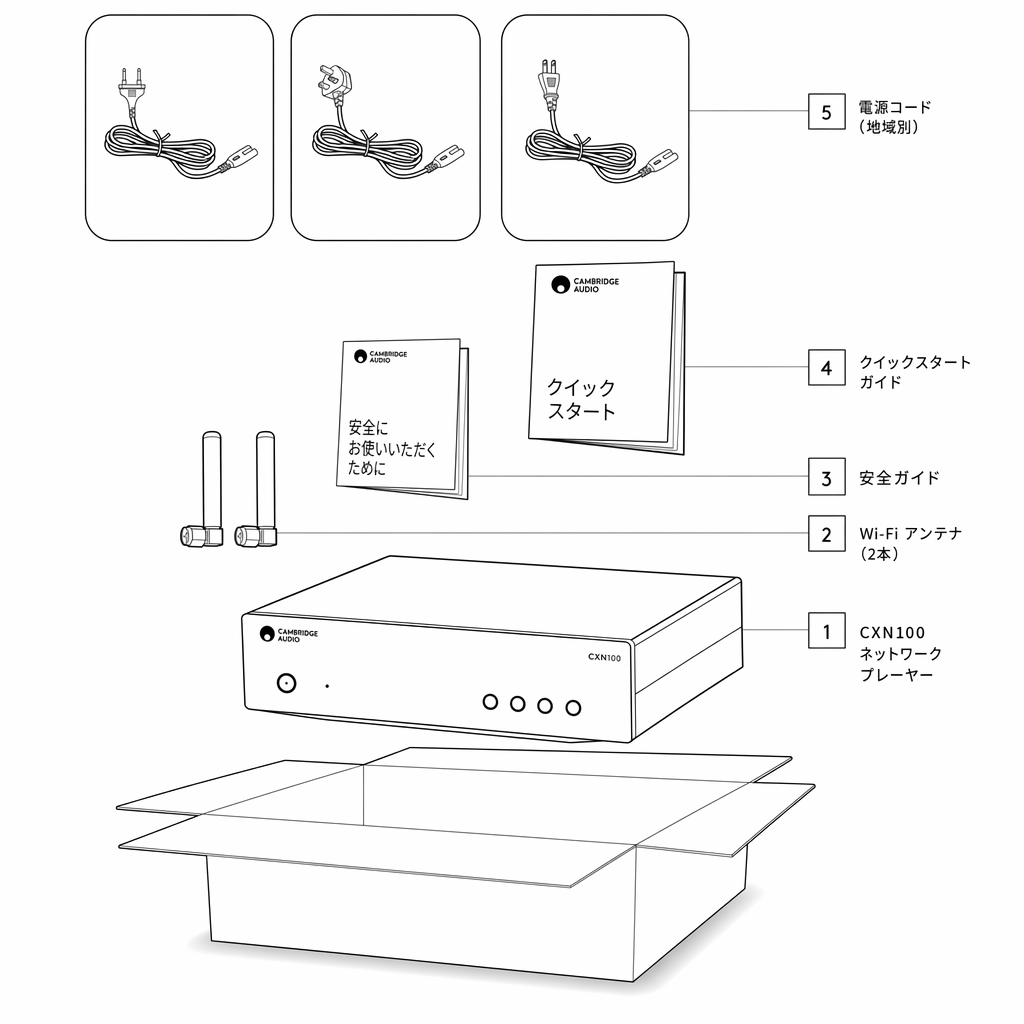
- MXN10 プレーヤー本体
- Wi-Fi / Bluetooth アンテナ(2 本)
- 安全ガイド
- クイックスタートガイド
- 地域別電源コード
フロントパネルの操作部

1. 電源ボタン
1. Power button
本機をスタンバイモード(電源 LED が暗く点灯)とオン(電源 LED が明るく点灯)の間で切り替えます。スタンバイモードは低消費電力モード(0.5 ワット)です。これは Eco モード使用時のみ実現します。使用しないときは、本機をスタンバイモードのままにしてください。
Switches the unit between Standby Mode (indicated by dim power LED) and On (indicated by bright power LED). Standby Mode is a low power mode (0.5 Watts) – This can only be achieved when using Eco mode. The unit should be left in Standby Mode when not in use.
2. ネットワーク状態 LED
2. Network state LED
色と点滅状態の説明については、LED の説明ページをご参照ください。
See LED Descriptions page for descriptions of the colours and flashing states
3. プリセットボタン
3. Preset buttons
プリセットの呼び出しと保存に使用します。プリセットとして保存できる内容について詳しくは、StreamMagic アプリのホームタブにあるプリセットセクションをご参照ください。
Used to access and store presets, for more information on what can be stored as a preset please see the Presets section on the Home tab in the StreamMagic app.
再生中のメディアがプリセットとして保存可能な場合は、プリセットボタンを長押しするとプリセットを保存します。
If the currently playing media can be stored as a preset, long pressing the preset button will store the preset
LED の説明
LED の色
| モード | 色 |
|---|---|
| 起動中 白 - ゆっくり点滅 | |
| ネットワークに接続中 白 - 速く点滅 | |
| ネットワーク接続完了 白 - 点灯 | |
| ネットワーク設定モード ティール - ゆっくり点滅 | |
| 追加の設定が必要 ティール - 点灯 | |
| ソフトウェア更新中 白 / ティール - ゆっくり点滅 | |
| インターネット接続なし オレンジ - 点灯 | |
| 工場出荷時設定にリセット中 赤 - 速く点滅 |
リアパネルの接続部
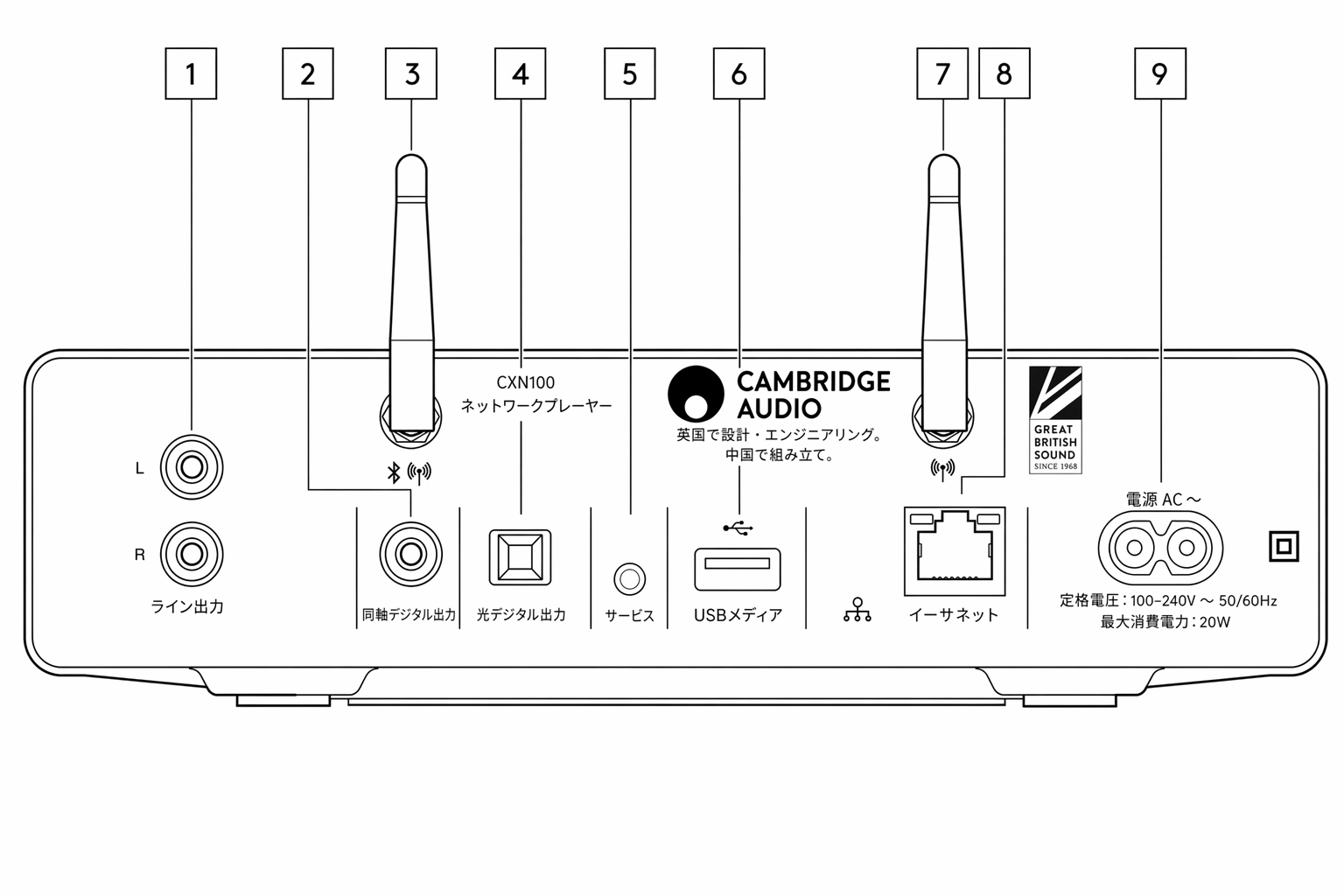
1. ライン出力
1. Line output.
プリメインアンプ、プリアンプ、または録音機器に信号を供給するためのアナログ出力です。
Analogue output used to provide a signal to an integrated amplifier, pre-amp or recording device.
2. S/PDIF 同軸デジタル出力
2. S/P DIF coaxial digital output.
3. Wi-Fi および Bluetooth アンテナ
3. WiFi and Bluetooth antenna
ご使用の前に、両方のアンテナをしっかり接続してください。
Ensure both antennas are connected securely before use.
4. TOSLINK デジタル出力
4. TOSLINK digital output.
5. サービスポート
5. Service port.
サービス専用ポートです。破損の原因となるため、ここには何も接続しないでください。
For servicing use only. Do not connect anything here as it may result in damage.
6. USB ソケット
6. USB Sockets
USB HDD やフラッシュディスクを接続します。USB ポートは Apple モバイル機器の接続を想定しておらず、充電などの機能はサポートしていません。
Connection for USB HD/flash disk, the USB ports are not intended for connection to Apple mobile devices, no functionality, charging or otherwise, is supported.
7. Wi-Fi アンテナ
7. WiFi antenna
8. Ethernet
8. Ethernet
MXN10 をルーターに直接接続する際に使用します。
Use to connect the MXN10 directly to a router.
9. AC 電源ソケット
9. AC Power Socket
アンプへの接続がすべて完了したら、AC 電源ケーブルを適切なコンセントに差し込み、電源を入れてください。
Once you have completed all connections to the amplifier, plug the AC power cable into an appropriate mains socket then switch on.
接続する
基本的な接続
Basic connections
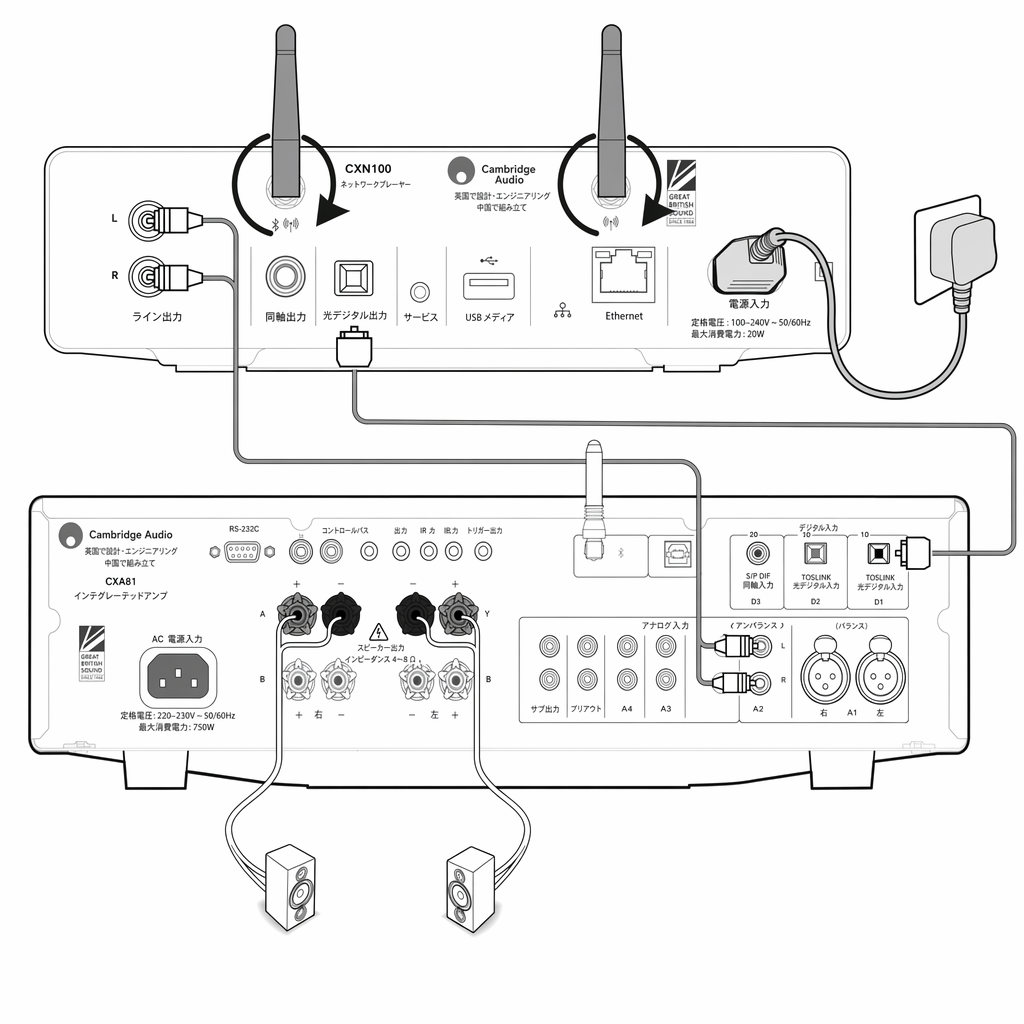
下の図は、MXN10 とアンプの基本的な接続を示しています。
The diagram below shows the basic connection of your MXN10 to an amplifier.
Wi-Fi に接続する
Connecting to WiFi
重要:MXN10 を Wi-Fi または Ethernet でインターネットに可能な限り常時接続しておくことが非常に重要です。これにより本機が定期的に更新され、必須のセキュリティプロトコル、サードパーティ互換性、最新ソフトウェア要件に適合します。
Important Note: It is vitally important that your MXN10 remains connected to an internet network as often as possible, either via Wi-Fi or Ethernet. This will ensure that the unit is regularly updated to meet essential security protocols, third party compatibility and the latest software requirements.
Cambridge Audio が提供する定期的なファームウェアアップデートを適用しない場合、製品保証が無効になり、やがて本機に重大な問題が発生する可能性があります。必ず最新のファームウェアバージョンに更新してください。MXN10 の最新ファームウェア情報はこちらでご確認いただけます。
Failure to maintain your device with regular firmware updates as provided by Cambridge Audio will void the product warranty and is likely to cause major issues to the unit in time. Please ensure that your unit is updated to the most current firmware version. Information on the latest firmware version for the MXN10 can be found here.
注:MXN10 はキャプティブポータル方式のネットワークには対応していません。MXN10 は 2.4GHz / 5GHz の Wi-Fi ネットワークに接続できます。
Note: The MXN10 is not compatible with captive portal networks. The MXN10 can connect to 2.4GHz/5GHz WiFi networks
有線ネットワークに接続する
Connecting to a wired network
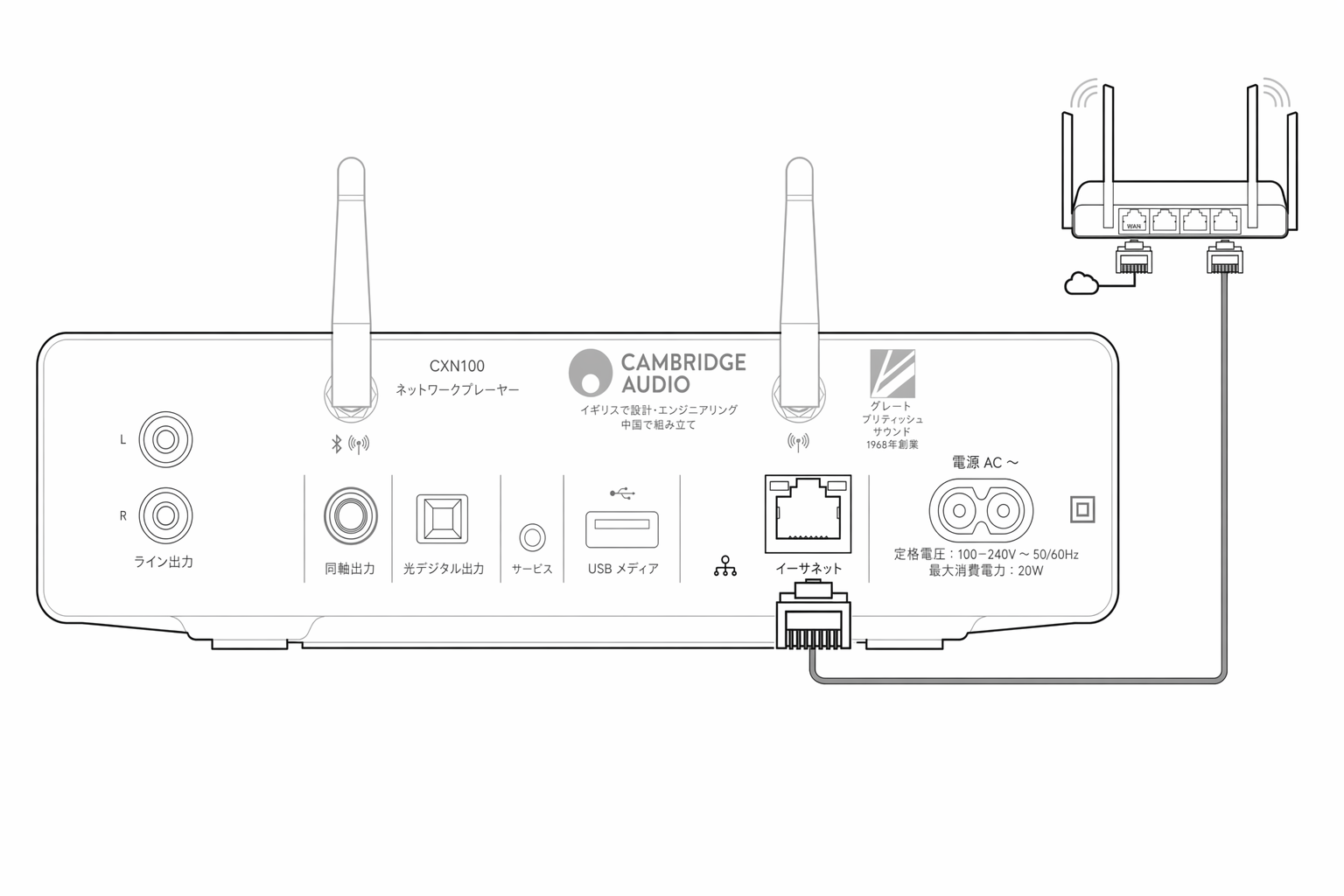
- ネットワークケーブル(カテゴリー 5 / 5E のストレート Ethernet ケーブル)で MXN10 とルーターを接続します。
- MXN10 が自動的にネットワークに接続します。
無線ネットワークに接続する
Connecting to a wireless network
iOS の場合:
iOS:
- MXN10 が無線ルーターの受信範囲内にあることを確認し、本機の電源を入れます。
- iOS デバイスの Wi-Fi 設定を開き、「SETUP NEW AIRPLAY SPEAKER」から「MXN10」を選択します。
- 接続が完了したら、Apple App Store から StreamMagic アプリをダウンロードしてインストールし、セットアップを完了してください。
Android の場合:
Android:
- MXN10 が無線ルーターの受信範囲内にあることを確認し、本機の電源を入れます。
- Google Play ストアから StreamMagic アプリをダウンロードしてインストールします。
- StreamMagic アプリを開き、「Connect」を選択します。
- Choose a device で「Set up a new device」を選び、続けて MXN10 を選択します。
- 「Wireless Connection」を選び、「Continue」をタップします。
- Android デバイスに受信範囲内の Wi-Fi 機器が一覧表示されます。「Setup:MXN10」を選択してください。
- 接続後、Wi-Fi ネットワークのパスワード入力を求められます。パスワードを入力し、「Continue」を選択します。
- MXN10 が Wi-Fi ネットワークに接続します。最大 1 分ほどかかる場合があります。
- 接続後、StreamMagic アプリ内で本機の初期設定を完了してください。
StreamMagic アプリ - セットアップ
本プレーヤーはネットワーク接続に対応しています。本機の入力端子に接続した機器を再生できるだけでなく、ホームネットワークやインターネット上のさまざまなソースから音楽をストリーミング再生できます。
Your player is network connected, not only can you listen to devices connected to the inputs on the product but you can also stream music from many different sources both on your home network and from the internet.
プレーヤーをセットアップするには、まず Apple App Store または Google Play ストアから StreamMagic アプリをダウンロードしてください。
To set up your player, please first download the StreamMagic app from the Apple app store or Google Play store.


セットアップ
- プレーヤーの電源を入れます。
- StreamMagic アプリを開き、指示に従ってプレーヤーのネットワーク設定を完了します。この手順では、保留中の新しいアップデートも適用します。
注:セットアップ中にプレーヤーの名前を付けるよう求められます。他と重複しない独自の名前を付けてください。ストリーミングやスマートホームサービスを使う際に、識別しやすくなります。
Note: During the set up process you will be asked to give your player a name, please make sure this is unique to your player. This will make it easier to find when using streaming and smart home services.
プレーヤーをホームネットワークに接続すると、インターネットラジオ、ストリーミングサービス、ネットワーク / USB ドライブなど、各種ソースをすべて操作できるようになります。
Once your player is connected to your home network you'll have full control of your sources, including internet radio, streaming services, network and USB drives and more.
StreamMagic アプリについて詳しくは、次のサイトをご参照ください: https://www.cambridgeaudio.com/products/streammagic
For more information on our StreamMagic app, please visit: https://www.cambridgeaudio.com/products/streammagic
Google Home / Chromecast built-in
本プレーヤーはネットワーク接続に対応しています。本機の入力端子に接続した機器を再生できるだけでなく、ホームネットワークやインターネット上のさまざまなソースから音楽をストリーミング再生できます。
Your player is network connected, not only can you listen to devices connected to the inputs on the product but you can also stream music from many different sources both on your home network and from the internet.
本プレーヤーは Chromecast built-in に対応しており、Google Home に組み込めます。プレーヤーをセットアップするには、スマートフォンまたはタブレットに Google Home アプリをダウンロードしてください。
Your player features Chromecast built-in and can be incorporated in to your Google Home. To set up your player, download the Google Home app on your smart phone or tablet.
Chromecast built-in により、お手持ちのスマートフォンがリモコン代わりになります。普段お使いのアプリの Cast ボタンをタップするだけで、スマートフォン、タブレット、ノート PC から音楽・ポッドキャスト・プレイリストをプレーヤーへストリーミング再生できます。
With Chromecast built into your player, your phone becomes your remote. Simply tap the Cast button from apps you already know and love to stream music, podcasts and playlists from your phone, tablet or laptop to your player.
Chromecast built-in
スマートフォンがリモコンになります
Your phone is your remote
- 普段お使いのアプリの Cast ボタンをタップするだけで始められます。新規アカウント登録やダウンロードは不要です。
- 家のどこからでも、スマートフォンを使って検索・再生・一時停止・音量調整ができます。
- ストリーミング中でもスマートフォンは他の用途で使えます。SNS を見たり、メッセージを送ったり、電話に出たりできます。
- Chromecast 対応スピーカーとマルチルームキャストを組み合わせれば、家じゅうで音楽を楽しめます。
- 「Hey Google」と話しかけるだけで、プレーヤーにキャストできます。
あなたのペースで楽しめる、無限のエンターテインメント
Unlimited entertainment, all on your schedule
- 何百ものアプリに対応しており、対応アプリは続々と追加されています。
- Pandora、Spotify、YouTube Music などの人気音楽サービスから、数百万曲の中から選べます。
注:StreamMagic アプリで初めてプレーヤーをセットアップする際、または工場出荷時設定にリセットした後は、Chromecast 機能を有効化するための Google の利用規約に同意してください。
Note: When first setting up your Player via the StreamMagic app or after a factory reset, please ensure that you accept Google's terms and conditions when prompted to enable Chromecast functionality.
Android、Google Play、Chromecast built-in ロゴは、Google Inc. の商標です。
Android, Google Play and the Chromecast built-in logo are trademarks of Google Inc.
Chromecast built-in のすべての機能は、一部の地域では利用できない場合があります。
Full Chromecast built-in features may not be available in some territories.
インターネットラジオ
StreamMagic アプリの Radio タブでは、さまざまなインターネットラジオ局を検索・再生できます。また、お気に入りのインターネットラジオ局やその他のメディアをプレーヤーのプリセットとして最大 99 件まで登録でき、StreamMagic アプリから呼び出せます。リモコン付属モデルでは、一部のプリセットはリモコンからも呼び出せます。
You can browse and play a wide variety of Internet Radio stations in the StreamMagic app Radio tab. You can also assign up to 99 of your favourite Internet Radio stations and other media as presets on your player, which can then be recalled using the StreamMagic app. A limited amount of presets can be recalled via the remote control if your player includes one.
StreamMagic アプリでプリセットを検索・登録する手順:
- StreamMagic アプリで Radio タブを開きます。
- ページ上部の Search for Radio 検索タブを使うか、URL を選んでカスタム URL リンクを入力します。
- 登録したい放送が見つかったら、それを選択します。Play now(今すぐ再生)または Add to presets(プリセットに追加)の選択肢が表示されます。
- プレーヤーのプリセット 1〜99 のうち、登録先を選びます。
- 選択したプリセットに放送が保存されたことを示す確認メッセージが表示されます。
注:カスタム URL ストリームは、次の対応ファイル形式のいずれかであることを確認してください: ALAC、WAV、FLAC、AIFF、DSD(×256)、WMA、MP3、AAC、HE AAC AAC+、OGG Vorbis。
Note: Please ensure that the custom URL stream is one of the following supported file types: ALAC, WAV, FLAC, AIFF, DSD (x256), WMA, MP3, AAC, HE AAC AAC+, OGG Vorbis.
プリセットを削除する手順(iOS):
- StreamMagic アプリで Home タブを開きます。
- ページを下にスクロールし、プレーヤーのプリセットが表示されたら EDIT を選択します。
- プリセットから放送を削除するには、赤い丸のアイコンをタップし、Delete を押します。
プリセットを削除する手順(Android):
- StreamMagic アプリで Home タブを開きます。
- ページを下にスクロールし、プレーヤーのプリセットが表示されたら EDIT を選択します。
- 削除したい放送をタップします。
注:リモコン付属モデルでは、放送の再生中にリモコンの数字ボタンを長押しすることでプリセットに登録することもできます。
Note: You may also assign a preset using a remote control if your player includes one, by pressing and holding a number on the remote whilst a station is playing.
AirPlay
AirPlay は、家庭内のオーディオシステムやスピーカーをどの部屋からでもコントロールできる Apple の技術です。iPhone、iPad、HomePod、Apple TV からタップ、または Siri への呼びかけだけで操作できます。リビングとキッチンで同じ曲を同時に再生したり、どの部屋でも音量を一斉に調節したりできます。
AirPlay is an Apple technology designed to control home audio systems and speakers in any room — with a tap or by just asking Siri — right from iPhone, iPad, HomePod, or Apple TV. Play a song in the living room and kitchen at the same time or adjust the volume in any room, all in sync.
プレーヤーを設置したら、iPhone や iPad を使って数ステップで Apple Home アプリに追加してください。
After installing your player, add it to the Apple Home app with a few simple steps using your iPhone or iPad
iPhone や iPad から AirPlay を使う方法
1. プレーヤーがネットワークに接続されていることを確認します。
1. Ensure your player is connected to your network.
2. AirPlay で再生したいアプリを開きます。
2. Open the app that you want to AirPlay from.


3. または をタップします。
3. Tap or .
4. AirPlay 機器としてお使いのプレーヤーを選択します。
4. Select your player as your AirPlay device.
コントロールセンターから AirPlay を使う方法
コントロールセンターからデバイスのオーディオを切り替える手順:
To switch the audio on your device from Control Center:
画面右上から下にスワイプしてコントロールセンターを開きます。右上のエリアを長押しし、お使いのプレーヤーを選択してください。
Swipe down from the top right side of the screen on your device to open Control Center. Touch and hold in the upper-right corner, then select your player.
本製品は AirPlay 2 に対応しており、iOS 11.4 以降が必要です。
This product supports AirPlay 2 and requires iOS 11.4 or later.
Apple および AirPlay は、米国およびその他の国で登録された Apple Inc. の商標です。
Apple and AirPlay are trademarks of Apple Inc., registered in the U.S. and other countries.
Works with Apple バッジは、バッジで示される技術と連携するよう設計され、Apple のパフォーマンス基準を満たすことを開発者が認定したアクセサリーであることを示します。
Use of the Works with Apple badge means that an accessory has been designed to work specifically with the technology identified in the badge and has been certified by the developer to meet Apple performance standards.
内蔵ストリーミングサービス
本プレーヤーには、以下のストリーミングサービスが内蔵されています。
Your player has the following built-in streaming services:
- Spotify Connect
- TIDAL
- Qobuz
- Deezer
注:ストリーミング元の機器(スマートフォン、タブレット、パソコンなど)は、プレーヤーと同じ Wi-Fi ネットワークに接続している必要があります。機器同士が通信できるようにするためです。
Note: It is essential that the device you are streaming from (smartphone, tablet, computer, etc.) is on the same Wi-Fi network as your player, to ensure that the units can communicate with each other.
Spotify Connect
スマートフォン、タブレット、パソコンを Spotify のリモコンとして使用します。
Use your phone, tablet or computer as a remote control for Spotify.
詳しくは spotify.com/connect をご参照ください。
Go to spotify.com/connect to learn more.
TIDAL(Connect)
1. TIDAL アプリを開き、プレーヤーでストリーミング再生したいプレイリスト、アルバム、楽曲などを選びます。
1. Open the TIDAL app and choose the playlist, album, song, etc. that you wish to stream to your player.
2. TIDAL 内の Sound Output devices アイコンを選択し、一覧からお使いのプレーヤーを選びます。
2. Select the Sound Output devices icon within TIDAL and select your player from the list.
3. TIDAL Connect が、選択したコンテンツをプレーヤーにストリーミング再生します。
3. TIDAL Connect should now be streaming your chosen content to your player.
詳しくは tidal.com/connect をご参照ください。
Go to tidal.com/connect to learn more
TIDAL(StreamMagic 経由)
1. StreamMagic アプリを開き、Library タブから TIDAL を選択します。
1. Open the StreamMagic app and navigate to the Library tab, and then select TIDAL.
注:TIDAL アカウントへのサインインを求められた場合は必ずサインインしてください。アカウントと StreamMagic アプリを連携させるため、初回のみ必要です。
Note: Please ensure that you sign into your TIDAL account when prompted to do so. This will only be required on the first instance of use to link the account to the StreamMagic app.
2. プレーヤーでストリーミング再生したいプレイリスト、アルバム、楽曲などを選びます。
2. Choose the playlist, album, song, etc. that you wish to stream to your player.
3. TIDAL が、選択したコンテンツをプレーヤーにストリーミング再生します。
3. TIDAL should now be streaming your chosen content to your player.
Qobuz(Google Cast 経由)
1. Qobuz アプリを開き、プレーヤーでストリーミング再生したいプレイリスト、アルバム、楽曲などを選びます。
1. Open the Qobuz app and choose the playlist, album, song, etc. that you wish to stream to your player.
2. Qobuz 内の Google Cast アイコンを選択し、Qobuz Connect の一覧からお使いのプレーヤーを選びます。
2. Select the Google Cast icon within Qobuz and select your player from the Qobuz Connect list.
3. Qobuz が、選択したコンテンツをプレーヤーにキャスト再生します。
3. Qobuz should now be casting your chosen content to your player.
Qobuz(StreamMagic 経由)
1. StreamMagic アプリを開き、Library タブから Qobuz を選択します。
1. Open the StreamMagic app and navigate to the Library tab, and then select Qobuz.
注:Qobuz アカウントへのサインインを求められた場合は必ずサインインしてください。アカウントと StreamMagic アプリを連携させるため、初回のみ必要です。
Note: Please ensure that you sign into your Qobuz account when prompted to do so. This will only be required on the first instance of use to link the account to the StreamMagic app.
2. プレーヤーでストリーミング再生したいプレイリスト、アルバム、楽曲などを選びます。
2. Choose the playlist, album, song, etc. that you wish to stream to your player.
3. Qobuz が、選択したコンテンツをプレーヤーにストリーミング再生します。
3. Qobuz should now be streaming your chosen content to your player.
Deezer(Google Cast 経由)
1. Deezer アプリを開き、プレーヤーでストリーミング再生したいプレイリスト、アルバム、楽曲などを選びます。
1. Open the Deezer app and choose the playlist, album, song, etc. that you wish to stream to your player.
2. Deezer 内のスピーカーアイコンを選択し、「Google Cast」を選びます。続けて一覧からお使いのプレーヤーを選択します。
2. Select the speaker icon within Deezer, then select 'Google Cast'. Select your player from the list.
3. Deezer が、選択したコンテンツをプレーヤーにキャスト再生します。
3. Deezer should now be casting your chosen content to your player.
Deezer(StreamMagic 経由)*
1. StreamMagic アプリを開き、Library タブから Deezer を選択します。
1. Open the StreamMagic app and navigate to the Library tab, and then select Deezer.
注:Deezer アカウントへのサインインを求められた場合は必ずサインインしてください。アカウントと StreamMagic アプリを連携させるため、初回のみ必要です。
Note: Please ensure that you sign into your Deezer account when prompted to do so. This will only be required on the first instance of use to link the account to the StreamMagic app.
2. プレーヤーでストリーミング再生したいプレイリスト、アルバム、楽曲などを選びます。
2. Choose the playlist, album, song, etc. that you wish to stream to your player.
3. Deezer が、選択したコンテンツをプレーヤーにストリーミング再生します。
3. Deezer should now be streaming your chosen content to your player.
*Deezer は、ファームウェアバージョン 129-b-004 以降、および StreamMagic アプリ バージョン 2.9.0 以降でのみ、StreamMagic アプリ内で利用できます。
*Deezer is only available within the StreamMagic app when running firmware version 129-b-004 or later and StreamMagic app version 2.9.0 or later.
Bluetooth
Bluetooth ソースを使うと、本プレーヤーでほとんどのスマートフォン、タブレット、ノート PC から Bluetooth ワイヤレスオーディオを受信できます。
The Bluetooth source allows your player to receive wireless Bluetooth audio from most phones, tablets and laptops.
ペアリング
Pairing
選択したメディアソースから高品質で音楽をストリーミングするには、まずプレーヤーとペアリングする必要があります。
To begin streaming high-quality music from your chosen media source it will first need to be paired with your player.
- StreamMagic アプリで Home タブを開きます。
- ソースの「Edit」オプションから Bluetooth ソースを追加します。
- Home タブに戻り、Bluetooth ソースを選択します。
- モバイル機器またはノート PC の Bluetooth 設定を開きます。
- 利用可能な機器の一覧からお使いのプレーヤーを選択します。
- 機器がプレーヤーに接続します。
いったんペアリングすると、プレーヤーの Bluetooth ソースを選び、接続履歴のある機器一覧からお使いのプレーヤーを選択することで、いつでも接続できるようになります。
Once paired you should be able to connect to your player at any time by selecting the Bluetooth source on your player and then choosing your player from the list of previously connected devices.
注:
Note:
Bluetooth 機器は、プレーヤーで Bluetooth ソースを選択している間のみ接続できます。
Your Bluetooth device can only be connected to your player while the Bluetooth source is selected.
USB メディア
本機の背面にある USB メディア入力に、USB SSD、USB HDD、フラッシュドライブを接続して再生できます。接続後は次の形式に対応します: ALAC、WAV、FLAC、AIFF、DSD(×512)、WMA、MP3、AAC、HE AAC、AAC+、OGG Vorbis。
You may connect a USB SSD, USB HDD or flash drive to your player via the USB Media inputs located on the rear of the unit for playback. Once connected the following formats are supported: ALAC, WAV, FLAC, AIFF, DSD (x512), WMA, MP3, AAC, HE AAC, AAC+, OGG Vorbis
注:本プレーヤーは、USB 入力に接続した大容量ハードドライブも読み込めます。ただし、大容量のドライブによっては、別途専用電源が必要になる場合があります。
Note: your player will read large capacity hard drives connected to their USB inputs. However, some larger capacity drives will require you to use their own power supply.
本プレーヤーは、FAT32、exFAT、NTFS でフォーマットされた USB ハードドライブのみに対応しています。
Your player only supports USB hard drives which are formatted to FAT32, exFAT and NTFS.
本プレーヤーの主な用途はネットワーク音楽プレーヤーです。USB ポートは USB フラッシュドライブを手軽に接続するためのものです。そのため、すべての USB HDD との互換性は保証できません。
The primary function of your player is as a network music player. The USB ports are intended for convenient connection of USB thumb drives. As such, we cannot guarantee compatibility with all USB HDD’s.
USB メディアの再生(StreamMagic アプリ経由)
USB Media Playback (via StreamMagic app)
1. リアパネルの USB 入力に、USB SSD、HDD、フラッシュドライブを接続します。
1.Connect USB SSD, HDD or flash drive to rear panel USB Input.
2. StreamMagic アプリの Library タブを開きます。
2.Navigate to the Library tab of the StreamMagic app.
3. USB Drives 内で該当の USB メディア機器を探し、開きます。
3.Under USB Drives, locate your USB Media device and open.
4. トラックを選択すると、「PLAY FROM HERE」「PLAY TRACK NOW」「PLAY TRACK NEXT」「QUEUE TRACK」のオプションから選べます。
4.Upon selecting a track you will have the option to ‘PLAY FROM HERE’, ‘PLAY TRACK NOW’, ‘PLAY TRACK NEXT’ or ‘QUEUE TRACK’.
ローカルのデジタル音楽コレクションをストリーミングする
本プレーヤーは、さまざまな物理ソースからコンテンツを再生できます。このセクションでは、ローカルに保存したデジタル音楽コレクションへのアクセスと再生方法を説明します。「ローカルに保存」とは、PC、Mac、NAS(ネットワーク接続ストレージ)にあるデジタル音楽ファイルを指します。
Your player can play content from many different physical sources and this section will explain what you need to do to access and play your locally stored digital music collection. ‘Locally Stored’ means the digital music files you have on your PC, Mac or Network Attached Storage devices (NAS).
ローカルコンテンツをストリーミング再生するには、ネットワーク上で以下のハードウェアとソフトウェアを稼働させる必要があります。
To stream local content, you will need the following hardware and software running in your network:
1. Cambridge Audio のネットワークプレーヤー。
1. Your Cambridge Audio Network Player.
2. StreamMagic アプリを実行できるスマートフォンやタブレットなどのモバイル機器。
2. A mobile device such as a smartphone or tablet on which you can run the StreamMagic app.
3. 対応するデジタル音楽ファイルを保存したハードドライブ、コンピューター、または NAS。
3. A hard drive, computer or NAS containing your compatible digital music files.
4. 稼働中の UPnP 音楽 / メディアサーバー。
4. An active UPnP music or media server.
5. UPnP サービスを許可するよう設定されたルーター。
5. A router which is configured to allow the UPnP service.
注:上記のすべての項目を正しく接続・設定する必要があります。使用するサーバー、NAS、コンピューターなどにより、セットアップ内容が異なる点にご注意ください。できるだけ手間なくご利用いただけるよう、ベストプラクティスガイドを用意しています。こちらからご覧いただけます。
Note: The above items must be correctly connected and configured, and it is important to note that depending on the server, NAS, computer, etc. you’re using this will differ from setup to setup. To help you with this we have created best practice guide which should get you up and running with minimal fuss and effort. This can be found here.
設定
デバイス名
StreamMagic アプリや、Spotify、Chromecast built-in、TIDAL Connect などのサービス利用時に、ホームネットワーク上でプレーヤーが表示される名称です。
This is how your player will appear in your StreamMagic app and on your home network when using services like Spotify, Chromecast built-in and TIDAL Connect.
プレーヤーに独自の名前を付けると、ストリーミングやスマートホームサービスで識別しやすくなります。
Giving your player a unique name makes it easier to distinguish when using streaming and smart home services.
AirPlay 名
AirPlay や Apple Home アプリを使う際に、プレーヤーが表示される名称です。
This is how your player will appear when using AirPlay or the Apple Home app.
スタンバイモード
プレーヤーが使用するスタンバイモードの種類を選択します。
This selects what type of standby mode your player will use.
ネットワークスタンバイを選ぶと、スタンバイ中もプレーヤーを StreamMagic アプリや他のネットワークサービスから操作できます。
Network Standby means your player will still be controllable by the StreamMagic app and other network services.
Eco モードを選ぶと、スタンバイ時の消費電力がさらに少なくなりますが、本体のフロントパネルかリモコンで電源を入れる必要があります。
If Eco mode is chosen your player will use even less power in standby but will need to be switched on either by the front panel or the remote control.
自動電源オフ
無操作のまま放置してからスタンバイに入るまでの待ち時間を設定します。
This sets how long your player will wait while inactive before switching in to standby.
Roon Ready DSD
Roon が DSD コンテンツをどの形式で提供するかを選択できます。
This will allow you to choose how Roon provides DSD content.
デジタル出力で DoP を使用:お使いの機器が DoP 形式のネイティブ DSD に対応している場合に選びます。
Use DoP for digital output – If your device does support native DSD in DoP format.
デジタル出力で PCM を使用:お使いの機器がネイティブ DSD に対応していない場合に選びます。
Use PCM for digital output – If your device doesn’t support native DSD.
プリアンプ
プリアンプモードを有効にすると、本機のライン出力の音量をアプリから制御できるようになります。
With Pre-Amp mode enabled the volume of the device's line output can be controlled using the app.
注:プリアンプモードと音量制御は、ファームウェアバージョン 132-b-007 以降でのみ利用できます。
Note: Pre-amp mode and volume control is only available with firmware version 132-b-007 or later.
音量上限
AirPlay 2、Spotify、TIDAL Connect、Chromecast built-in などの他のストリーミングサービスが設定できる最大音量を指定します。StreamMagic アプリの音量コントロールは、この設定を上書きできます。
This sets the maximum volume that other streaming services like AirPlay 2, Spotify, TIDAL Connect and Chromecast built-in can set. The StreamMagic app volume controls can override this setting.
早期アップデート
「オン」に設定すると、一般公開前の最新ファームウェアを試せるようになります。
Setting this to ‘On’ will let you try out the latest firmware ahead of general release.
詳細と最新情報については、FAQ をご覧ください。
For more information and to find out what's new visit our FAQ.
ファームウェア
プレーヤー向けに提供されている新しいファームウェアを確認し、適用します。
This will check for and apply any new firmware available for your player.
一晩ネットワークスタンバイのまま放置すると、プレーヤーが自動的に新しいアップデートを確認・適用します。
When left in network standby overnight your player will check and apply any new updates.
工場出荷時リセット
プレーヤーを工場出荷時の設定に戻します。
This will return your player to its factory settings.
以下の手順で手動でリセットすることもできます。
You can also do this manually by following the steps below:
- 電源コードを抜きます。
- スタンバイボタンを押しながら、電源コードを差し直します。
- 工場出荷時リセットの処理中、LED が赤く点滅します。
- プレーヤーが再起動します。
注:ファームウェアアップデートを行うには、ネットワークプレーヤーがインターネットに接続されている必要があります。最適なパフォーマンスを維持するため、常時ネットワークに接続しておくことをお勧めします。
Note: Your network player must be connected to the internet to carry out firmware updates. It is recommended that you keep your network player connected to ensure optimal performance.
技術仕様
入力:Ethernet、USB ホスト(マスストレージ)、Wi-Fi、Bluetooth
Inputs Ethernet, USB host (mass storage), Wi-Fi, Bluetooth
出力:ライン出力(アンバランス)、デジタル出力(同軸および光)
Outputs Line out (unbalanced), Digital out (Coax and Optical)
DAC:ESS Sabre ES9033Q
DAC ESS Sabre ES9033Q
周波数特性:20Hz〜70kHz ±1dB
Frequency response20Hz – 70kHz +/-1dB
THD+N(0dBFS、1kHz、20kHz 帯域):<0.001%
THD+N 0dBFS, 1khz, 20k BW<0.001%
SN 比(20kHz 帯域):>110dB
S/N Ratio (20k BW)>110dB
RCA 出力レベル:2Vrms ±10%
RCA output level2Vrms +/-10%
RCA 出力インピーダンス:500Ω
RCA output Impedance500Ohm
Ethernet:IEEE 802.3 10 Base-T または 100 Base-T
Ethernet IEEE 802.3 10 Base-T or 100 Base-T
Wi-Fi:Wi-Fi 5 デュアルバンド 2.4 / 5GHz、WPA2 / WPA2-PSK
Wi-Fi Wi-Fi 5 dual band 2.4/5gHzWPA2/WPA2-PSK
Bluetooth:5.0 A2DP / AVRCP、SBC および AAC に対応
Bluetooth5.0 A2DP/AVRCP supporting SBC and AAC
対応:UPnP、ローカル USB メディア、Chromecast built-in、Spotify Connect、TIDAL、Qobuz、Deezer、Roon Ready、AirPlay 2
Compatibility UPnP, Local USB media, Chromecast built-in, Spotify Connect, TIDAL, Qobuz, Deezer, RoonReady, Airplay2
オーディオフォーマット:ALAC、WAV、FLAC、AIFF、DSD(×512)、WMA、MP3、AAC、HE AAC、AAC+、OGG Vorbis、HLS / DASH、.m3u、.pls プレイリスト
Audio formats ALAC, WAV, FLAC, AIFF, DSD (x512), WMA, MP3, AAC, HE AAC, AAC+, OGG Vorbis, HLS/DASH,.m3u, .pls playlists
USB ファイルシステム対応:FAT32、NTFS、ext3 / 4、exFAT
USB File system supportFAT32, NTFS, ext3/4, ExFAT
ハイレゾ対応:最大 768kHz / 32bit PCM、最大 DSD512
Hi-res support Up to 768KHz 32bit PCM, up to DSD512
デジタル同軸および光出力は、最大 192kHz / 32bit、最大 DSD64 に対応
Digital Coax and Optical outputs support a maximum of 192kHz 32bit, up to DSD64
電源電圧:100〜240V〜 50 / 60Hz
Mains Voltage100-240V ~50/60Hz
最大消費電力:20W
Max Power consumption 20W
スタンバイ時消費電力:<0.5W
Standby power consumption <0.5W
寸法(高さ × 幅 × 奥行):52 × 215 × 191mm
Dimensions (H x W x D) 52 x 215 x 191mm
質量:3kg
Weight 3kg
トラブルシューティング
MXN10 のネットワーク接続でお困りの場合は、次の手順で解決できる場合があります。
If you have trouble connecting the MXN10 to your network, these steps may help to resolve the problem:
- 付属の Wi-Fi アンテナが 2 本ともしっかり接続されていることを確認します。
- 同じネットワークに接続したコンピューターがインターネットにアクセスできる(Web を閲覧できる)ことを確認します。
- 暗号化された Wi-Fi ネットワークの場合は、キーまたはパスフレーズが正しく入力されているかを確認します。テキスト形式のキーは大文字と小文字を区別します。
MXN10 がネットワークに正常に接続できるものの、特定のインターネットラジオ局を再生できない場合、次の原因が考えられます。
If your MXN10 can connect to the network successfully but is unable to play particular Internet Radio stations, it may be due to one of the following causes:
- その時間帯に放送していない(別のタイムゾーンにある可能性もあります)。
- 同時接続リスナー数の上限に達している。
- 放送が終了している。
- サーバー(多くの場合、海外にあります)との接続速度が遅すぎる。
StreamMagic アプリを MXN10 に接続できない場合は、次の手順で解決できる場合があります。
If you have trouble connecting the StreamMagic app to the MXN10, these steps may help to resolve the problem:
- 付属の Wi-Fi アンテナが 2 本ともしっかり接続されていることを確認します。
- モバイル機器と MXN10 が同じネットワークに接続されていることを確認します。
- モバイル機器のアプリ設定で、StreamMagic アプリがネットワーク上の機器にアクセスできる設定になっているか確認します。
- モバイル機器にインストールした VPN やウイルス対策アプリが、StreamMagic アプリから MXN10 を見えなくしていないかを確認します。
UPnP 再生で問題が起きたときは、以下をご確認ください。
If you have problems with UPnP playback check the following:
- ご利用の UPnP サーバーソフトが、アクセスしたいファイル形式を配信できるか確認します。一部のサーバーは FLAC を配信できないなどの制約があります。
- MXN10 は DRM の無いファイルのみ再生できます。DRM 制御のあるファイルは再生できません。サーバーによっては、Microsoft PlaysForSure を認証・復号したうえで MXN10 に配信できるものもありますが、これはサーバーの機能に依存するため動作は保証できません。
- 24bit の WAV や FLAC を再生する場合は、帯域の関係から通常は有線 Ethernet 接続が必要になります。
- MXN10 がアクセスしようとしているファイル形式の再生に対応しているか確認します。
USB メディア再生で問題が起きたときは、以下をご確認ください。
If you have problems with USB Media playback check the following:
- MXN10 がアクセスしようとしているファイル形式の再生に対応しているか確認します。
- USB メディアについて、MXN10 は DRM の無いファイルのみ再生できます。DRM 制御のあるファイルは再生できません。
- USB ポート経由で電力を取る機器の場合、必要電流が 1A を超えていないか確認します。
- 機器のフォーマットが MXN10 に対応しているか確認します。
- USB メディアの整理方法により、MXN10 でのコンテンツ閲覧効率が変わります。アーティスト別フォルダを作り、その中にアルバム別のサブフォルダを作ってトラックを収録する構成がおすすめです。1 フォルダに数千曲を入れるような構成では、MXN10 のメディア閲覧が徐々に遅くなります。
電源が入らない場合:
There is no power:
- AC 電源コードがしっかり接続されていることを確認します。
- プラグがコンセントに完全に差し込まれ、スイッチが入っていることを確認します。
- 電源プラグやアダプターのヒューズを確認します。
よくあるご質問(FAQ)
MXN10 にプリアンプや音量調整機能はありますか?
はい、MXN10 のアナログ出力経由で接続している場合は、音量を調整できます。デジタル出力経由での接続時は、プリアンプモードと音量調整は使用できません。
Yes, it is possible to control the volume of your MXN when connected via the analogue outputs. Pre-amp mode and volume control is not possible when connected via the digital outputs.
アナログ出力経由で接続し、StreamMagic アプリのデバイス設定でプリアンプモードを有効にすると、アプリから MXN10 の音量を調整できます。
When connected via the analogue outputs and with Pre-amp mode enabled in the StreamMagic app device settings, you can control the volume of your MNXN via the app.
注:プリアンプモードと音量制御は、ファームウェアバージョン 132-b-007 以降でのみ利用できます。
Note: Pre-amp mode and volume control is only available with firmware version 132-b-007 or later.
MXN10 にリモコンは付属しますか?
MXN10 にリモコンは付属しません。本機の操作や設定は StreamMagic アプリから行えます。
The MXN10 does not have a remote control. The unit can be controlled and the settings can be adjusted via the StreamMagic app.
MXN10 は MQA コンテンツに対応していますか?
MXN10 は MQA エンコードされたコンテンツを受信できますが、MQA デコーダーを内蔵していないため、TIDAL Connect 経由で MQA ファイルを展開してフル再生することはできません。
Although the MXN10 can receive MQA encoded content, it is not possible for the device to playback full MQA files via TIDAL Connect, because the MXN10 does not have an MQA decoder built in to unfold the MQA files.
MQA 対応を MXN10 に追加する予定はありません。追加には、Full MQA Decoder を搭載するためのハードウェア改修が必要となるためです。
There are no plans to integrate MQA support into the MXN10, as this would require a hardware modification to install a Full MQA Decoder.
MXN10 と DacMagic 200M を組み合わせて MQA パススルーを設定するには?
MXN10 は MQA エンコードされたコンテンツを受信できますが、MQA デコーダーを内蔵していないため、TIDAL Connect 経由で MQA ファイルを展開してフル再生することはできません。
Although the MXN10 can receive MQA encoded content, it is not possible for the device to playback full MQA files via TIDAL Connect, because the MXN10 does not have an MQA decoder built in to unfold the MQA files.
ただし、MXN10 の DAC をバイパスし、DacMagic 200M のような MQA 対応外部 DAC で MQA ファイルを処理することは可能です。これにより DacMagic 200M で MQA ファイルのフル展開が行われ、MXN10 からは MQA ファイルの選曲・キュー操作を行えます。
It is, however, possible to bypass the DAC in the MXN10, and have the MQA file processed by an external DAC that supports MQA, such as the DacMagic 200M. This will allow the full unfold of the MQA file to take place in the DacMagic 200M, and you will still be able to control and queue your MQA files via the MXN10.
セットアップ手順は以下のとおりです。
Please follow the below instructions on how to how to set this up:
1. MXN10 のデジタル出力(S/PDIF 同軸または TOSLINK 光)のいずれかを、DacMagic 200M の対応するデジタル入力(D1 または D2)に接続します。
1. Connect either of the Digital Outputs (SP/DIF Coaxial or Toslink Optical) of the MXN10 to the corresponding DacMagic 200M Digital Input (D1 or D2).
2. DacMagic 200M のバランスまたはアンバランス出力をアンプに接続します。
2. Connect the Balanced or Unbalanced Output of DacMagic 200M to your amplifier.
3. DacMagic 200M で該当する D1 / D2 入力を選択します。
3. Select the relevant D1/D2 Input on your DacMagic 200M.
4. スマートフォンまたはタブレットで TIDAL アプリの「Settings」を開き、ストリーミング品質が「Master」に設定されていることを確認します。
4. Open the TIDAL app 'Settings' on your smartphone or tablet, and confirm that the streaming quality is set to ‘Master’.
5. TIDAL Connect メニューで、出力機器として MXN10 を選択します。
5. Select the MXN10 within the TIDAL Connect menu as your output device.
6. これでMQAファイルの処理がDacMagic 200Mにパススルーされます。MQA再生はDacMagic 200Mの関連するLEDライトで示されます。
6. Processing of the MQA files will now be passed through to the DacMagic 200M, and MQA playback should be indicated on the DacMagic 200M by the relevant LED light.
MXN10 の複数の出力を同時に使えますか?
MXN10 を 1 台の機器にのみ接続する場合は、デジタル・アナログを問わずどの出力でも使用できます。
If you wish to connect the MXN10 to one single device, you can use any output, digital or analogue, that you wish.
一方で、MXN10 を同時に複数の機器へ接続したい場合は、すべての出力が常に有効なので、最大 3 台まで接続して同時再生できます。
If, however, you would like to connect the MXN10 to more than one device at a time, you can connect up to three devices and play simultaneously, as all outputs remain active at all times.
MXN10 から音量を制御したい場合は、アプリでプリアンプモードを有効にする必要があります。
Please note that you will need to enable Pre-Amp mode in the app, if you wish to control the volume via the MXN10.
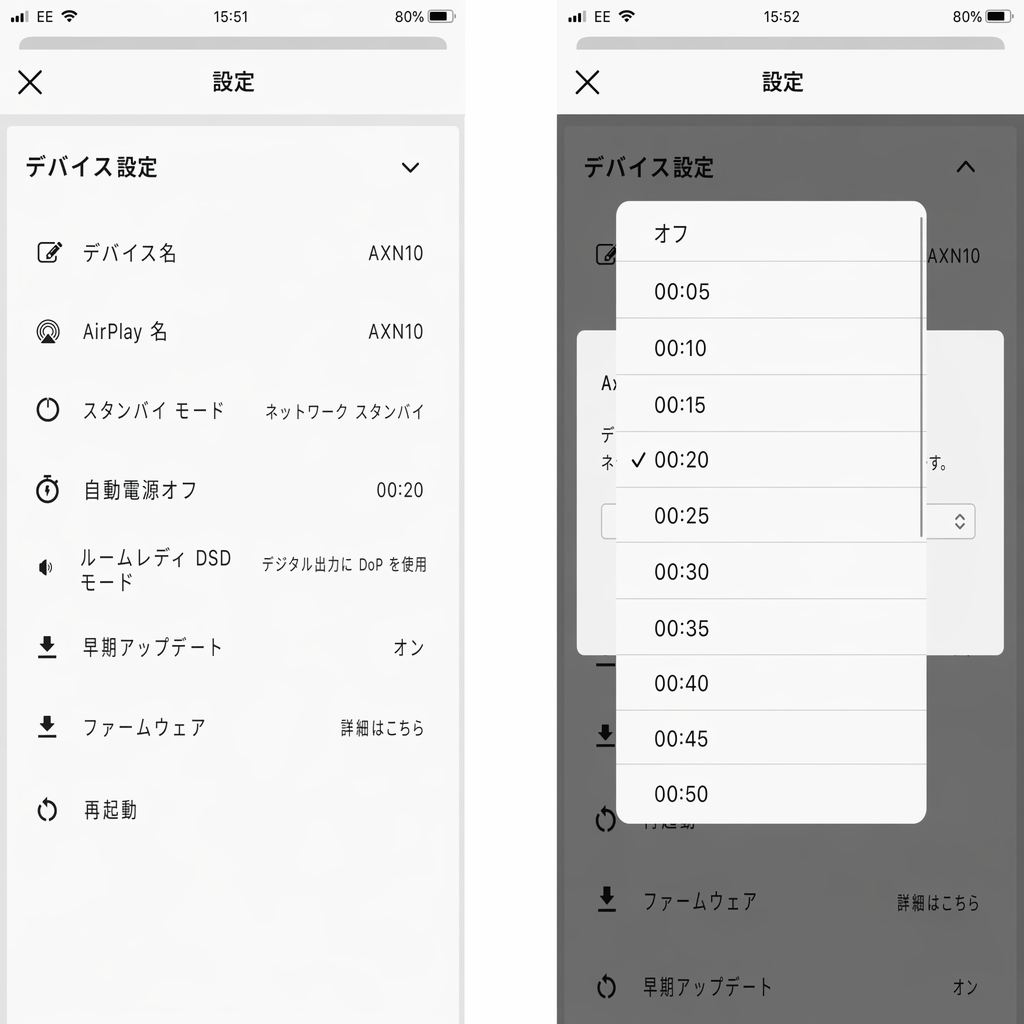
使用していないときに MXN10 が電源オフになるのを防ぐには?
MXN10 は操作されない状態が 20 分続くと、自動的にスタンバイモードに切り替わります。この自動電源オフ(APD)機能は、StreamMagic アプリのデバイス設定から無効にできます。
The MXN10 will automatically switch to standby mode after 20 minutes of inactivity. This Automatic Power-Down (APD) feature can be disabled, by navigating to the device settings within the StreamMagic app.
「Automatic Power-Down」を選択すると、この機能を無効にしたり、APD が作動するまでの時間を変更したりできます。
You can either disable this feature, or edit the length of time it takes for APD to be triggered, by selecting ‘Automatic Power-Down’.
MXN10 はどのような USB HDD に対応しますか?
MXN10 の主な用途はネットワーク音楽プレーヤーで、USB ポートは USB HDD や SSD を手軽に接続するためのものです。そのため、すべての USB HDD および SSD との互換性は保証できません。
The primary function of the MXN10 is as a network music player and the USB port is intended for convenient connection of USB HDDs and SSDs. As such, we can not guarantee compatibility with all USB HDDs and SSDs.
MXN10 は、USB メディア入力に接続した大容量ハードドライブを読み込めます。ただし、大容量のドライブの中には、プレーヤーの USB ポートでは電力が不足し、別途専用電源が必要になる場合があります。
The MXN10 will read large capacity hard drives connected to the USB Media input. Some larger capacity drives, however, may require their own power supply, as the player's USB port may not provide enough power for the drive to function.
MXN10 は、FAT32、exFAT、NTFS でフォーマットされた USB ハードドライブに対応します。
The MXN10 will support USB hard drives which are formatted to FAT32, exFAT and NTFS.
MXN10 がネットワーク未接続のとき、USB HDD のファイルを再生できますか?
いいえ、再生できません。接続した USB HDD のローカルファイルを再生するには、StreamMagic アプリの使用が必要です。
This is not possible as the use of the StreamMagic app is required to be able to play local files from a connected USB HD.
MXN10 は常時ネットワークに接続しておくことを強くお勧めします。
Please note that it is strongly recommended that the MXN10 is connected to a network at all times.
MXN10 背面のサービスポートは何のためのものですか?
MXN10 背面のサービスポートは、Cambridge Audio 認定サービスセンターおよびディーラーによるサービス専用です。
The service port on the back of the MXN10 is intended for servicing use only by Cambridge Audio authorised service centres and dealers.
サービスポートには一切の機器を接続しないでください。本機の破損につながる恐れがあります。
Please do not connect any devices to the service port, as this may result in damage to the unit.
MXN10 の動作に両方のアンテナを接続する必要がありますか?
はい、MXN10 を無線でネットワークに接続する場合は、Wi-Fi 機能を十分に発揮し、最も強い無線ネットワーク接続を確保するため、付属のアンテナを両方とも接続してください。
Yes, if you are connecting your MXN10 to your network wirelessly, you will need to connect both of the supplied antennas to enable full Wi-Fi functionality and the strongest possible wireless network connection.
Bluetooth 機能も、Bluetooth マークの付いたポートに片方のアンテナを接続している場合のみ利用できます。
Bluetooth functionality will also only be possible when one of the antennas is connected to the port with the Bluetooth symbol.